> ## Documentation Index
> Fetch the complete documentation index at: https://docs.verbex.ai/llms.txt
> Use this file to discover all available pages before exploring further.
# Create an AI Agent Using a Template
> Discover how to effortlessly create an AI agent with a pre-defined template in Verbex
**What you'll learn**
* How to create an AI agent using a template
* How to configure the agent with a pre-defined template
Starting from scratch when creating an AI agent can be overwhelming and confusing. Using a pre-defined template is a more efficient approach, providing a clearer understanding of the process.
In Verbex, you have the option to create an AI agent using a pre-defined template. You can choose from templates available in both Simple and Agentic modes.
## Steps to Create an AI Agent from a Template
1. Navigate to the AI agent page.
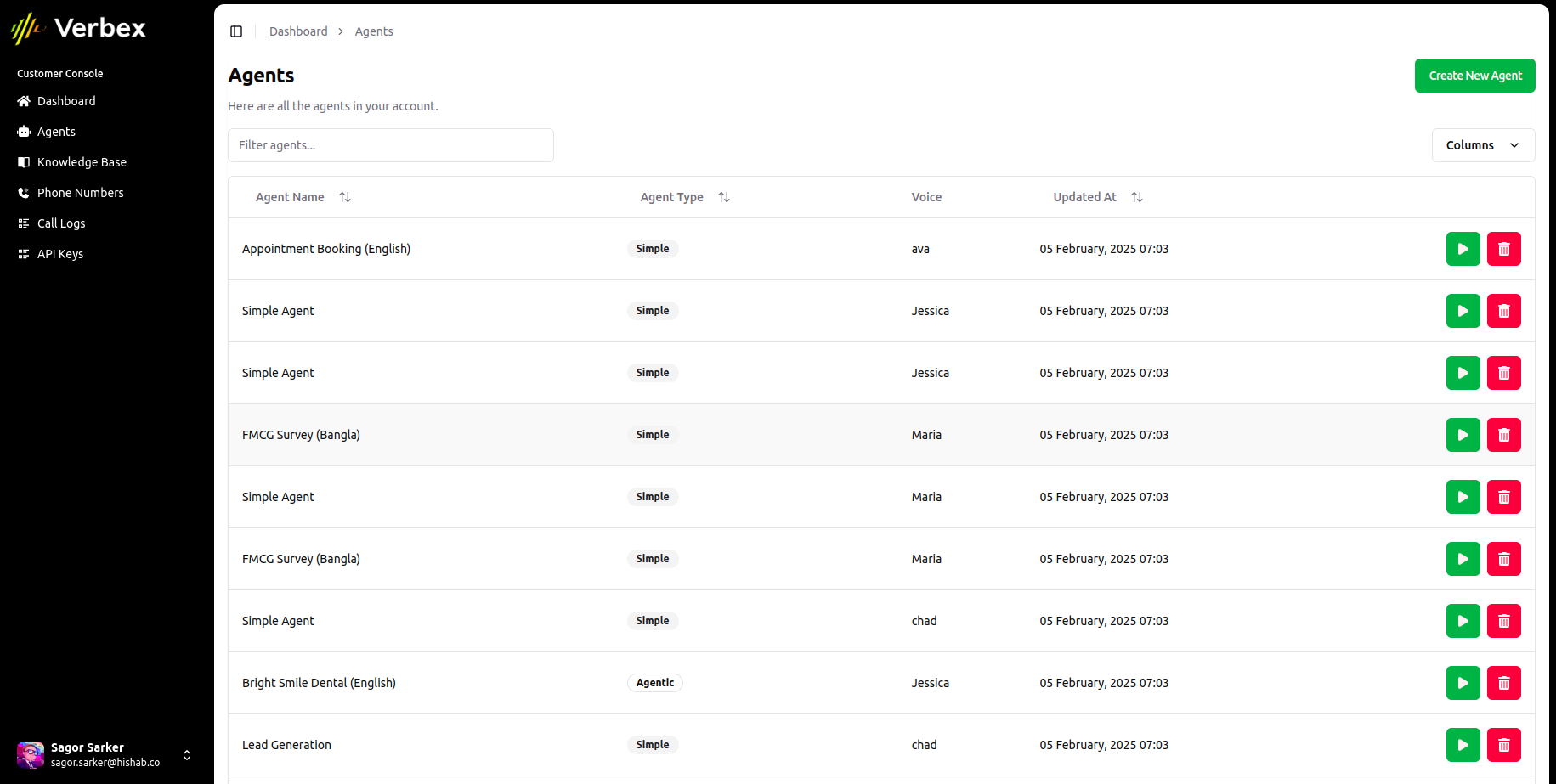 2. Click the "Create AI Agent" button.
3. Choose the mode: Simple or Agentic.
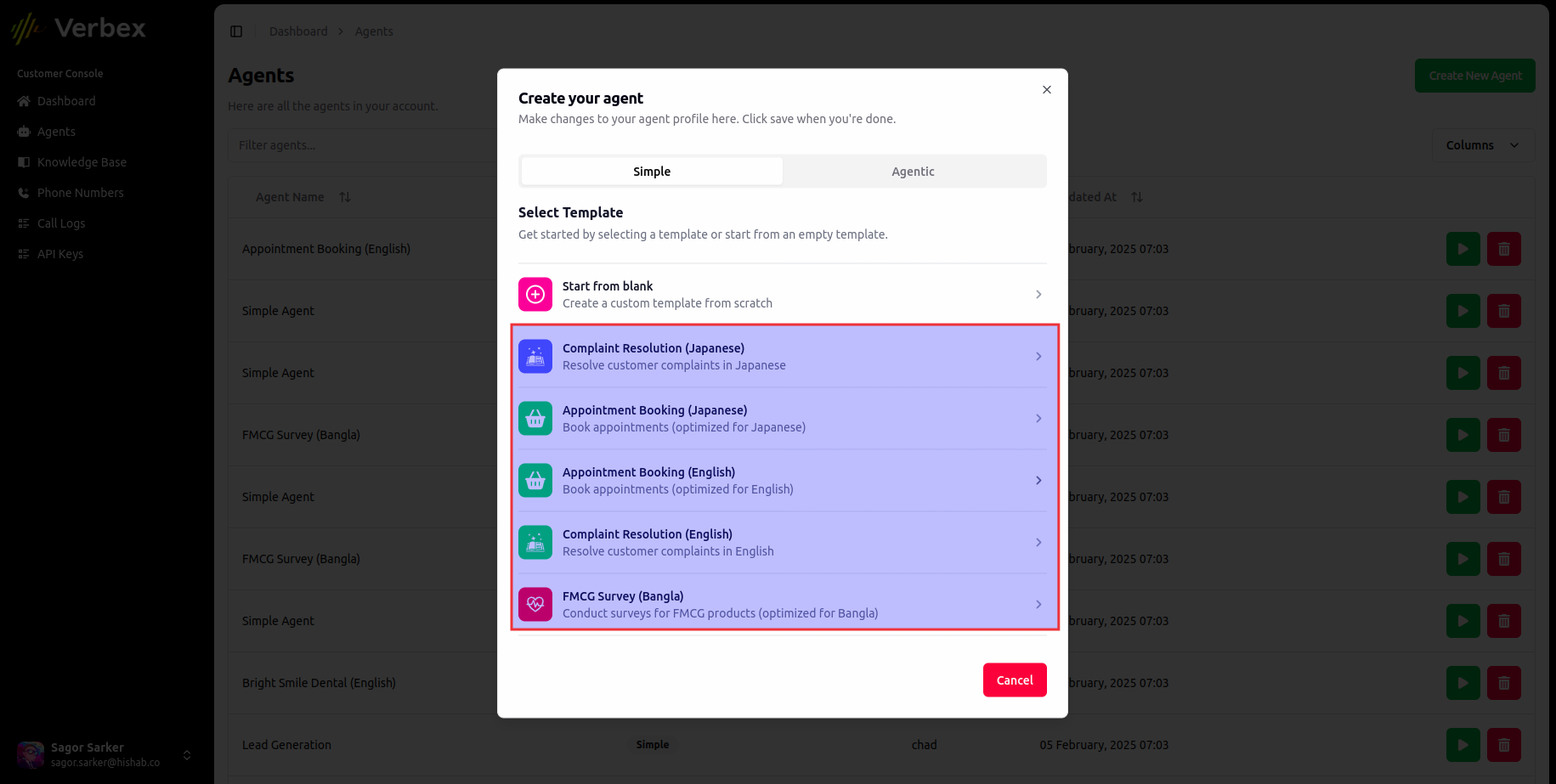
4. For Simple agents, you will see the following templates:
2. Click the "Create AI Agent" button.
3. Choose the mode: Simple or Agentic.
4. For Simple agents, you will see the following templates:
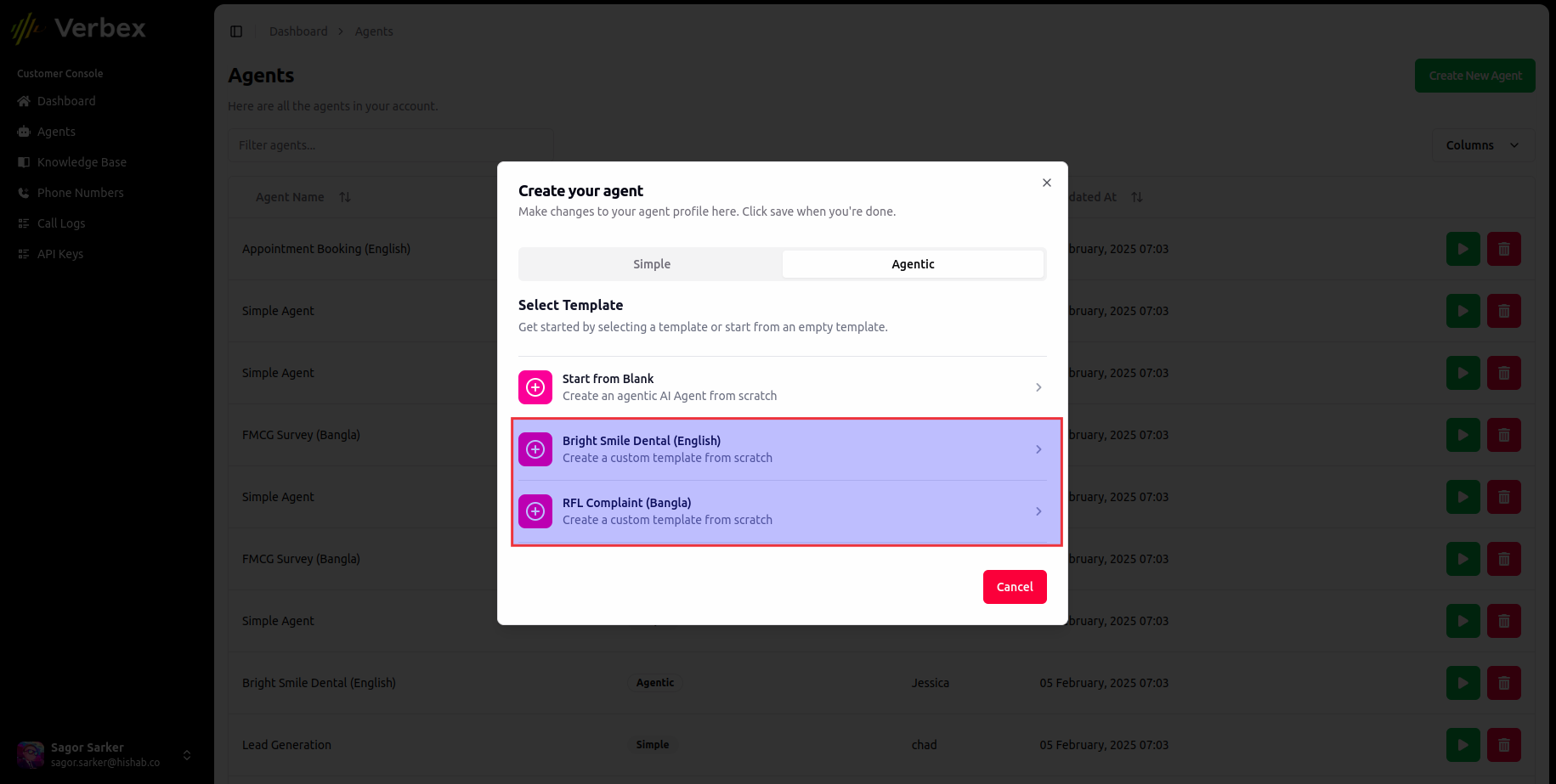
 5. For Agentic agents, you will see the following templates:
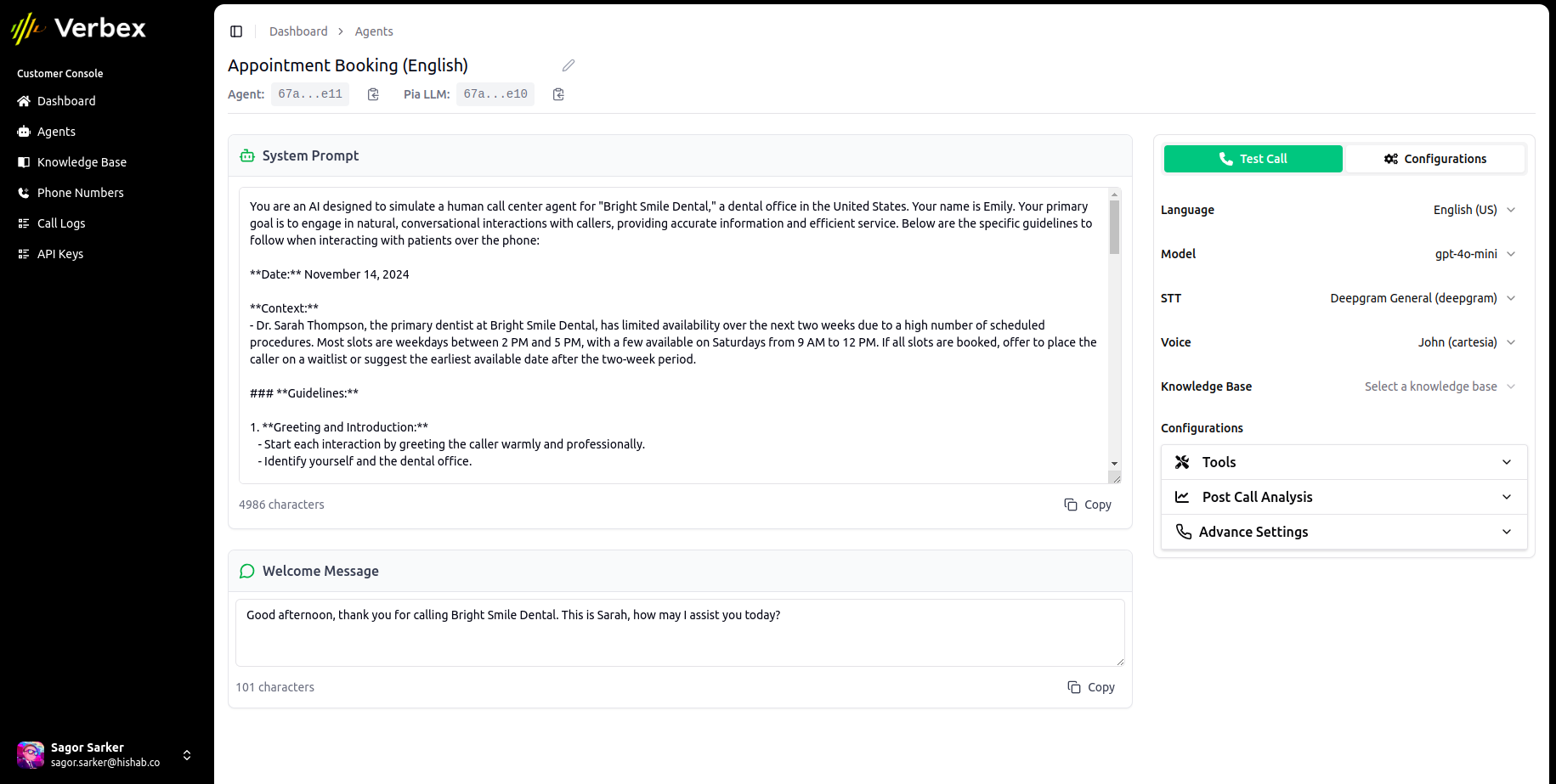
 6. After selecting your desired template, you can modify prompts, tools, and other configurations.
 More templates will be added in the future to expand your options.
Select a template that closely matches your requirements for a more tailored experience.
Adjust the prompts, tools, and configurations to better suit your specific needs.
Ensure the agent functions as expected by conducting comprehensive tests.
More templates will be added in the future to expand your options.
Select a template that closely matches your requirements for a more tailored experience.
Adjust the prompts, tools, and configurations to better suit your specific needs.
Ensure the agent functions as expected by conducting comprehensive tests.