> ## Documentation Index
> Fetch the complete documentation index at: https://docs.verbex.ai/llms.txt
> Use this file to discover all available pages before exploring further.
# Adding knowledge to your AI Agent
> Learn how to set up and manage Knowledge Bases in Verbex Platform
**What you'll learn**
* Overview of Knowledge Bases
* How to set up and manage your Knowledge Base
* How to connect your Knowledge Base to your AI Agent
* Best practices for maintaining your Knowledge Base
## Introduction
A Knowledge Base in Verbex is a centralized repository of information that your AI Agent can access to provide accurate, consistent responses to user queries. This feature enhances your Agent's ability to handle common questions and provide reliable information.
## Types of Knowledge Bases
### Website-Based Knowledge Base
Website-based knowledge bases allow your AI Agent to access and utilize information from your organization's website. For detailed instructions, refer to [Adding Websites to Knowledge Base](/knowledge-base/adding-documents-to-knowledge-base#add-websites-to-knowledge-base).
### Document-Based Knowledge Base
Document-based knowledge bases rely on specifically curated files uploaded to the system. For detailed instructions, refer to [Adding Files to Knowledge Base](/knowledge-base/adding-documents-to-knowledge-base#add-files-documents-to-knowledge-base).
## Setting Up Your Knowledge Base
### Accessing Knowledge Base Management
1. Log into your Verbex Dashboard
2. Navigate to the Knowledge Base section from the main menu
 ## Creating and Configuring Directories
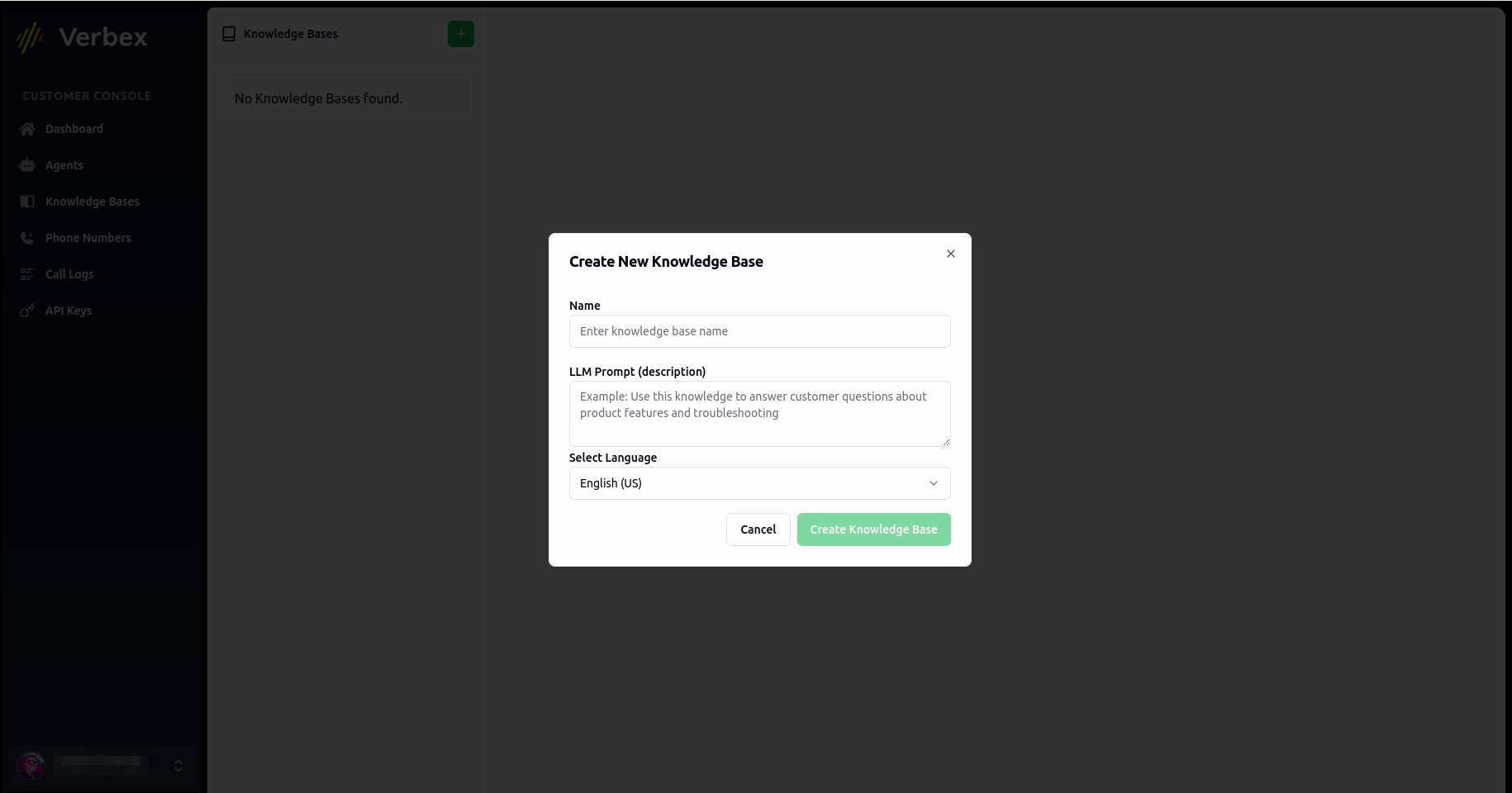
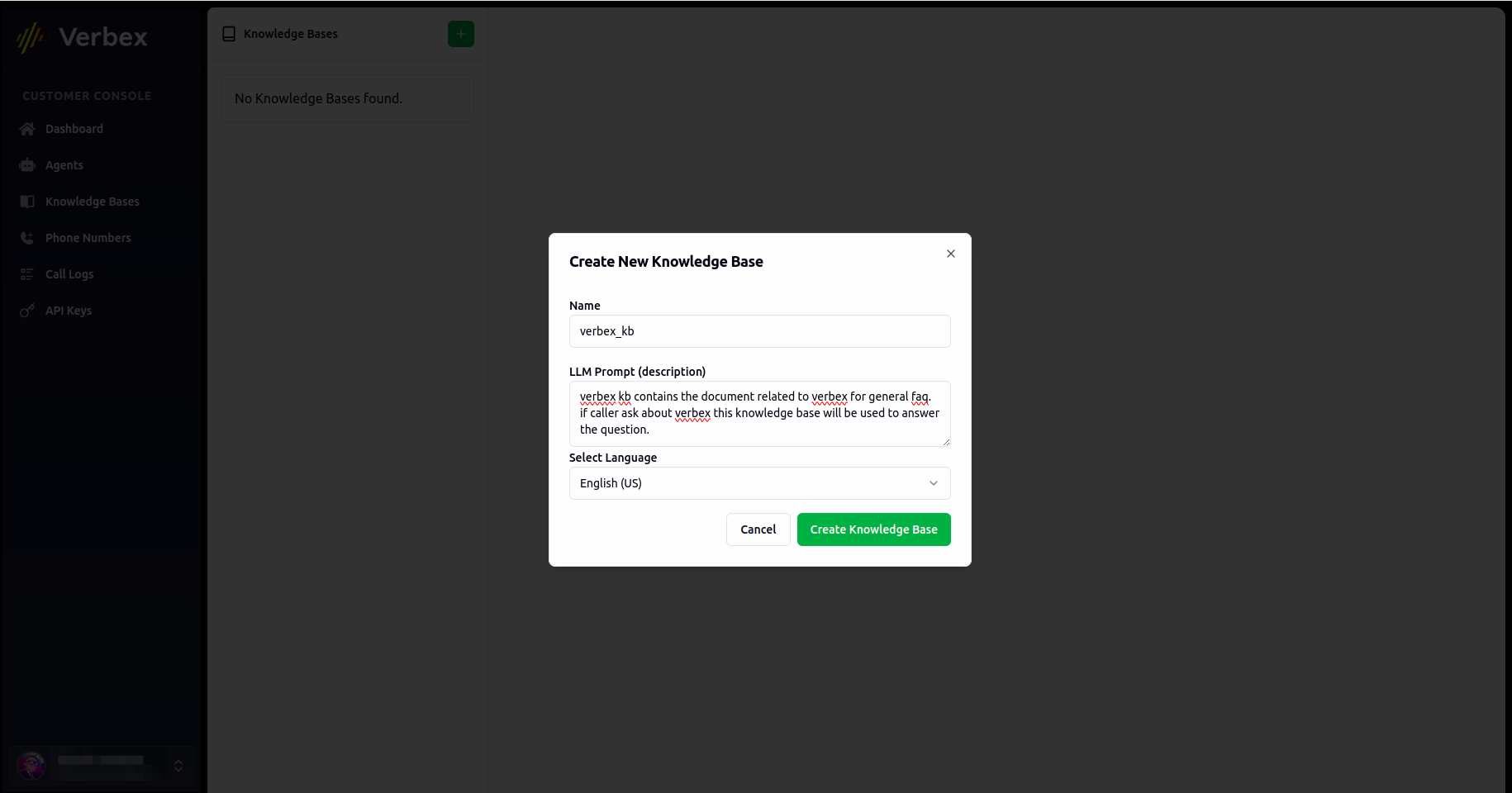
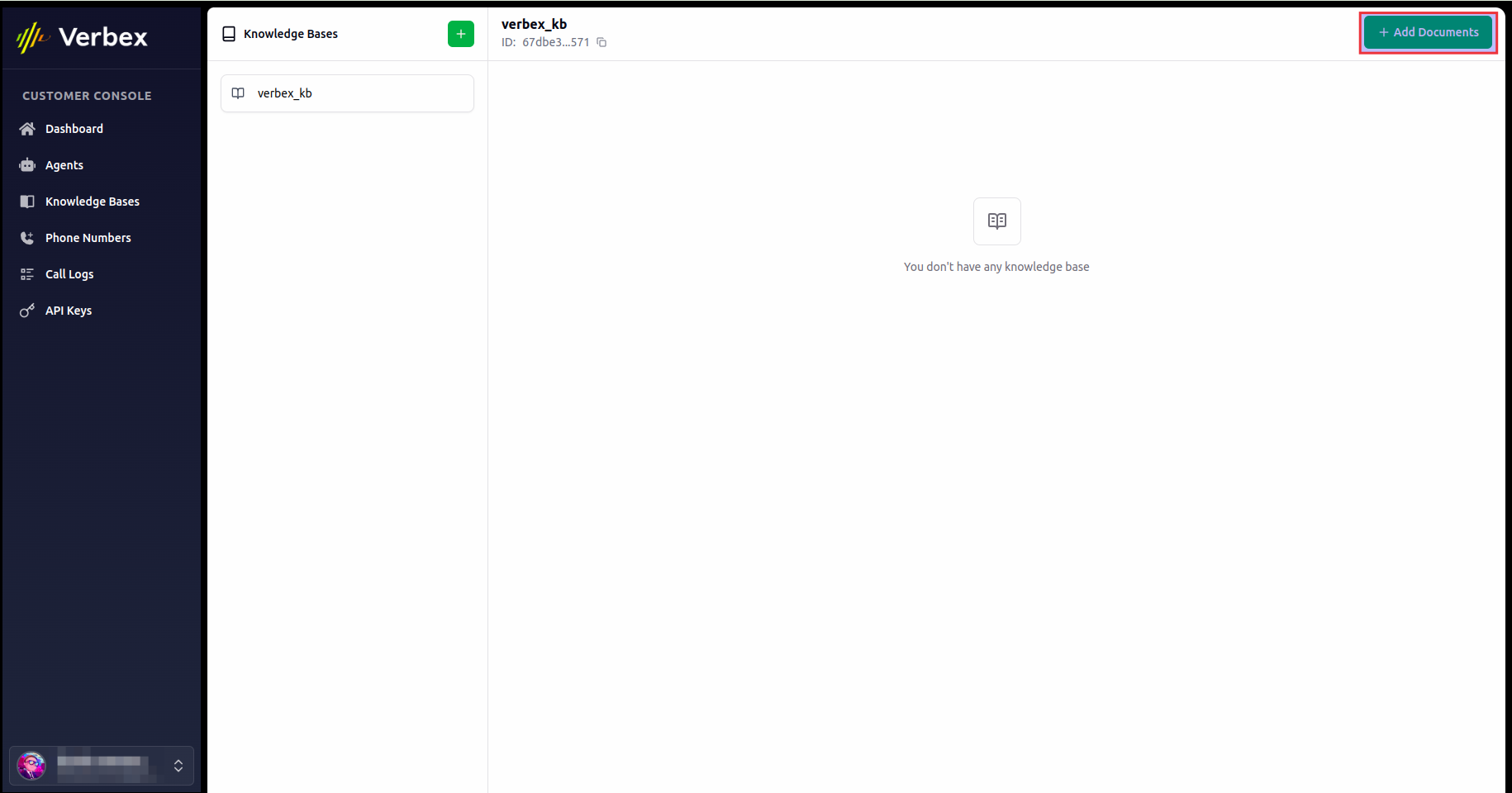
1. Click on **+** from upper left corner to create a dedicated space for your files
2. Provide a clear, descriptive name and add a detailed description
3. Use specific naming conventions for better organization
4. Select language for the knowledge base. Here langauge specifies the language of the knowledge base documents. **A single knowledge base can have only one language documents.**
## Creating and Configuring Directories
1. Click on **+** from upper left corner to create a dedicated space for your files
2. Provide a clear, descriptive name and add a detailed description
3. Use specific naming conventions for better organization
4. Select language for the knowledge base. Here langauge specifies the language of the knowledge base documents. **A single knowledge base can have only one language documents.**
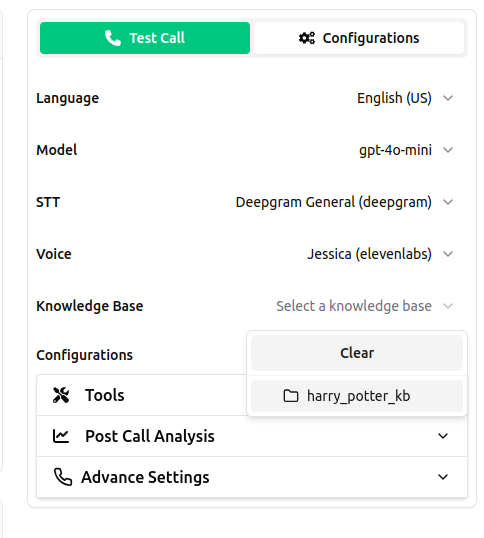
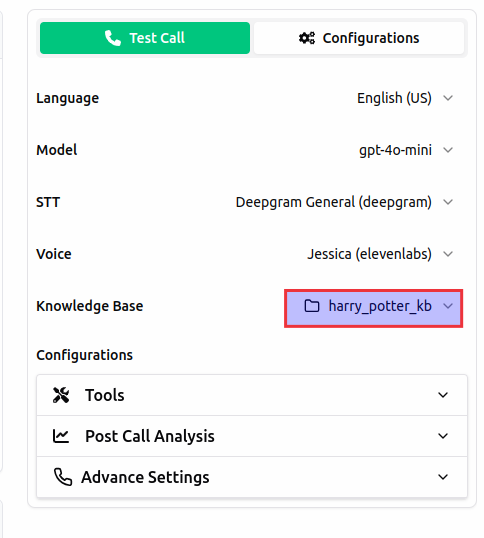
 ## Connecting Knowledge Base to Simple AI Agent
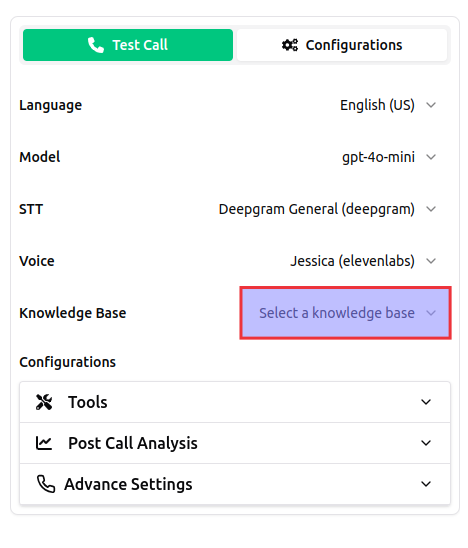
1. Return to your agent configuration
2. Navigate to the Configuration options
3. Select and connect the knowledge base to your agent
## Connecting Knowledge Base to Simple AI Agent
1. Return to your agent configuration
2. Navigate to the Configuration options
3. Select and connect the knowledge base to your agent
 ## Connecting Knowledge Base to Agentic AI Agent
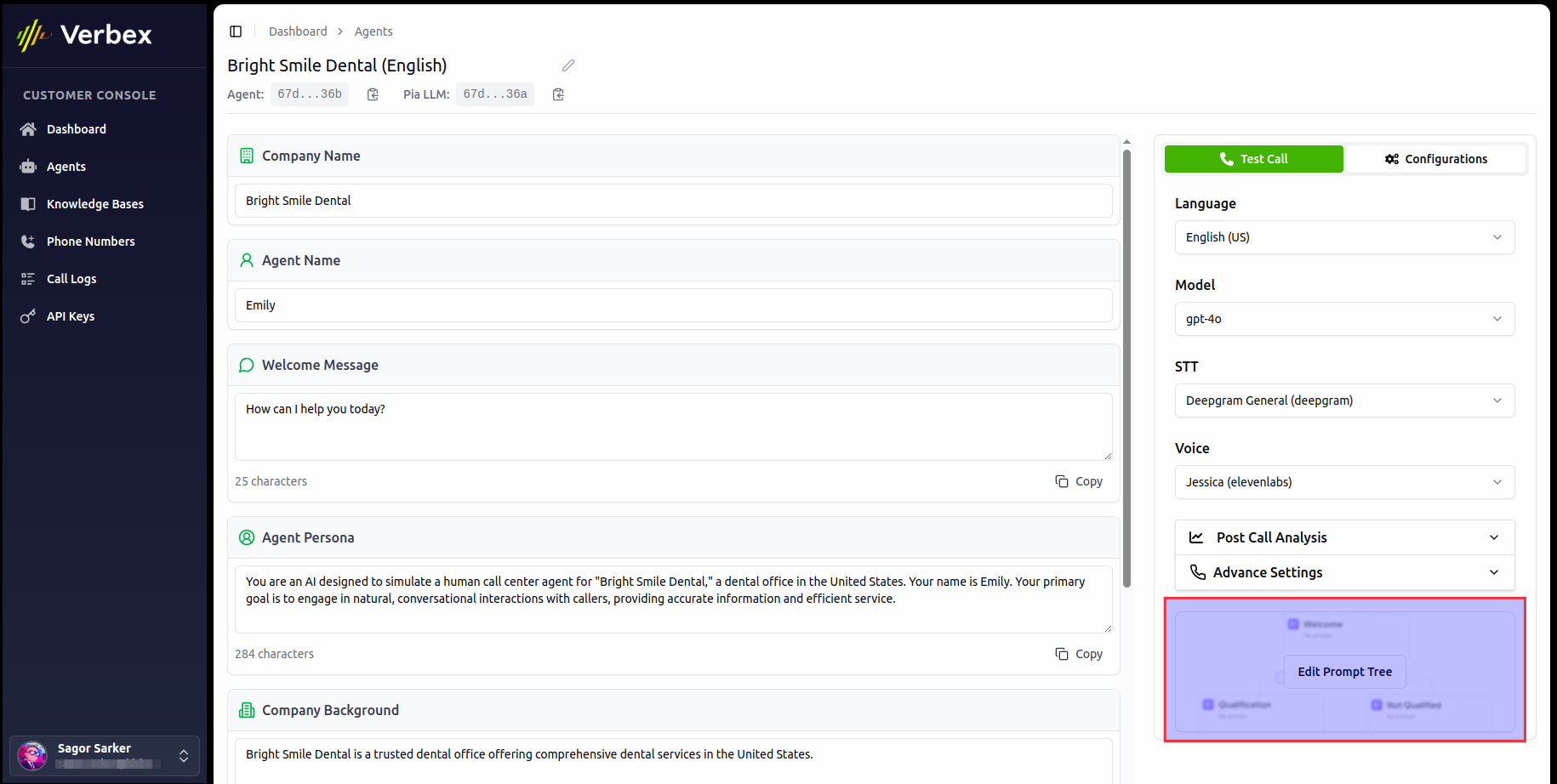
1. Go to your agentic agent dashboard
2. Click on the **Edit Prompt Tree** tab
## Connecting Knowledge Base to Agentic AI Agent
1. Go to your agentic agent dashboard
2. Click on the **Edit Prompt Tree** tab
 3. Select the agentic agent you want to connect the knowledge base to.
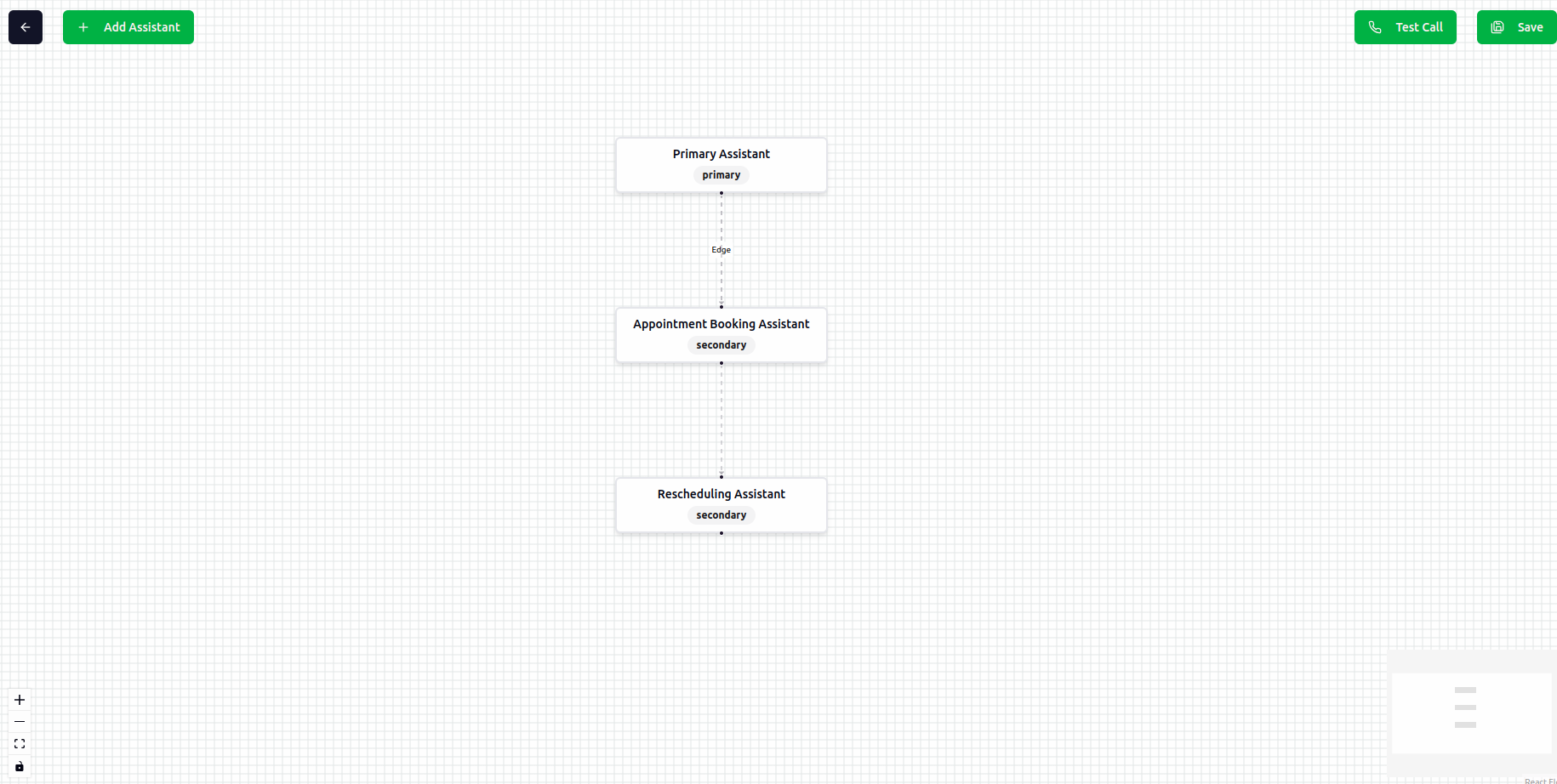 4. From **Knowledge Base** section, select the knowledge base you want to connect to your agentic agent using the dropdown menu
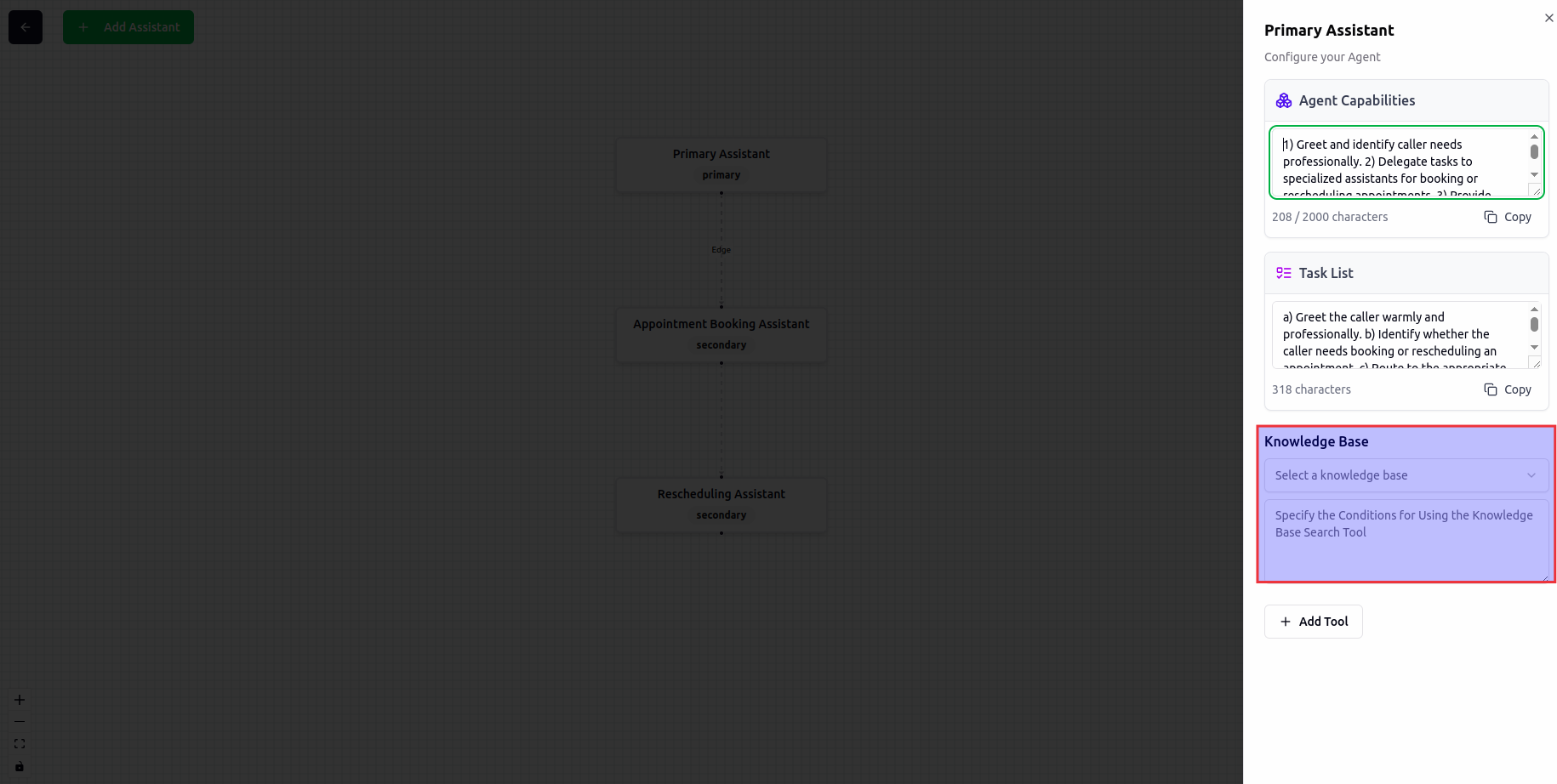
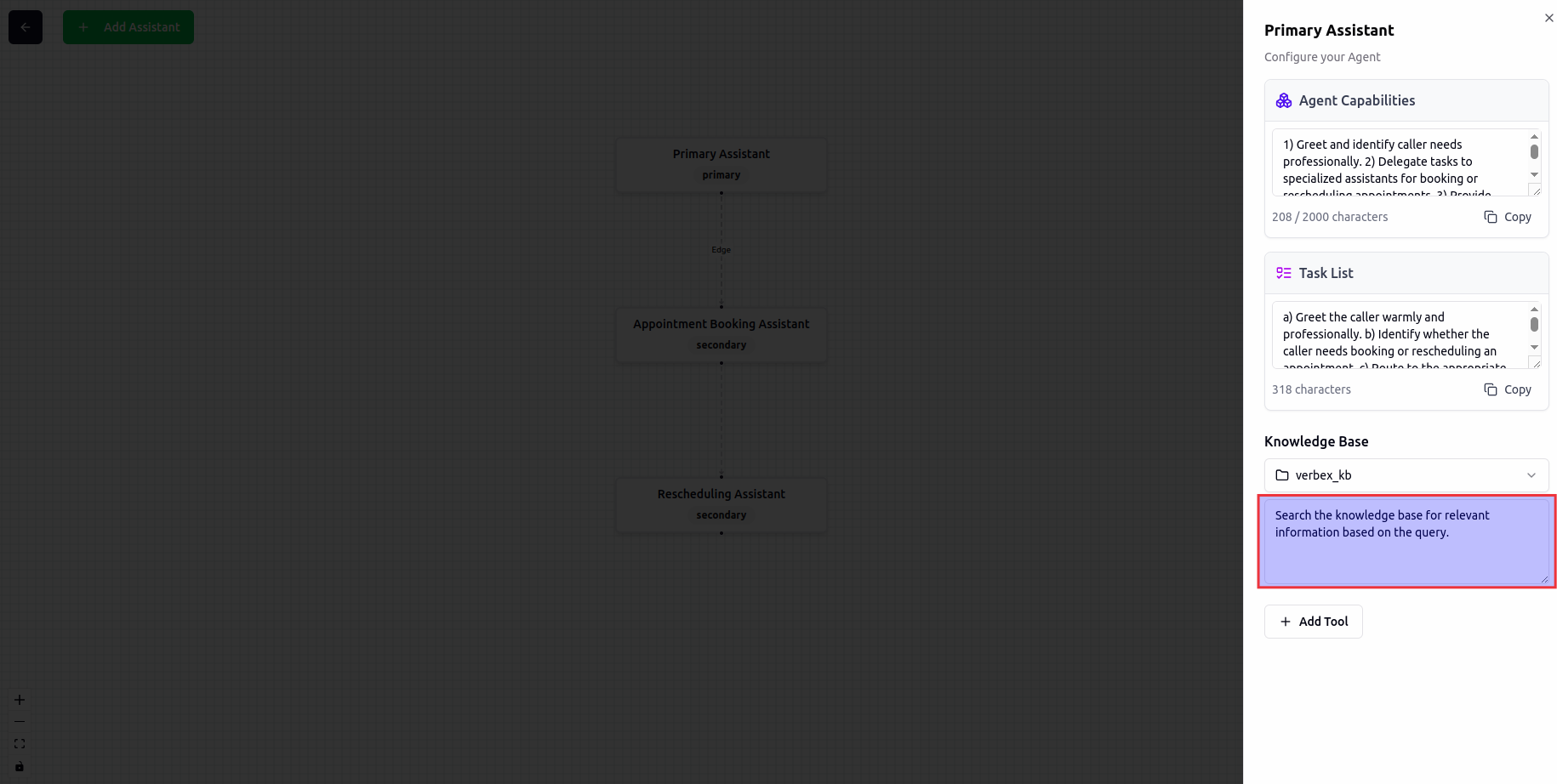
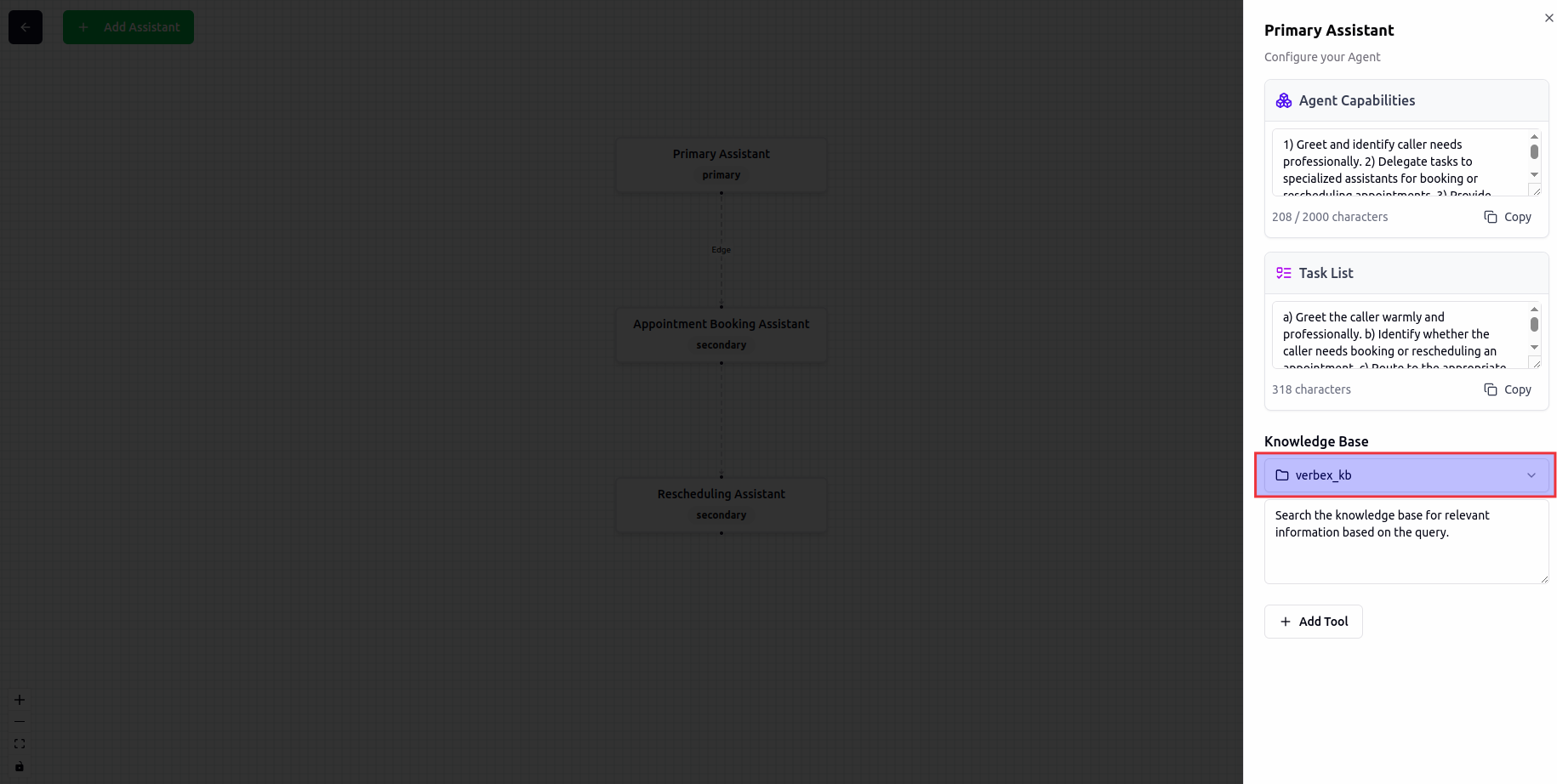 5. Specify the condition prompt for the knowledge base about when to use the knowledge base
 6. Now **Save** the workflow and **Test** the agentic agent to see the knowledge base in action
## Best Practices
Structure your knowledge base with clear categories and subcategories for easy navigation.
Write content in plain, jargon-free language that's accessible to users with minimal technical background.
Keep your knowledge base current by regularly reviewing and updating information as needed.
Provide real-world examples to help users understand how to apply the information.
Verify that your knowledge base content is easily understood by testing with users similar to your target audience.
## Conclusion
By effectively setting up and managing your Knowledge Base, you can significantly enhance the capabilities of your AI Agent, ensuring it provides accurate and reliable information to users.
6. Now **Save** the workflow and **Test** the agentic agent to see the knowledge base in action
## Best Practices
Structure your knowledge base with clear categories and subcategories for easy navigation.
Write content in plain, jargon-free language that's accessible to users with minimal technical background.
Keep your knowledge base current by regularly reviewing and updating information as needed.
Provide real-world examples to help users understand how to apply the information.
Verify that your knowledge base content is easily understood by testing with users similar to your target audience.
## Conclusion
By effectively setting up and managing your Knowledge Base, you can significantly enhance the capabilities of your AI Agent, ensuring it provides accurate and reliable information to users.