> ## Documentation Index
> Fetch the complete documentation index at: https://docs.verbex.ai/llms.txt
> Use this file to discover all available pages before exploring further.
# Adding Documents to Knowledge Base
> Learn how to add and manage documents in your Verbex Knowledge Base
**What you'll learn**
* How to add files documents to your Knowledge Base
* How to add websites to your Knowledge Base
* How to manage document-based Knowledge Base content
* Best practices for organizing and using document-based Knowledge Bases
## Add Files Documents to Knowledge Base
* Navigate to your desired knowledge base directory and click on **Add Document** from the upper right corner
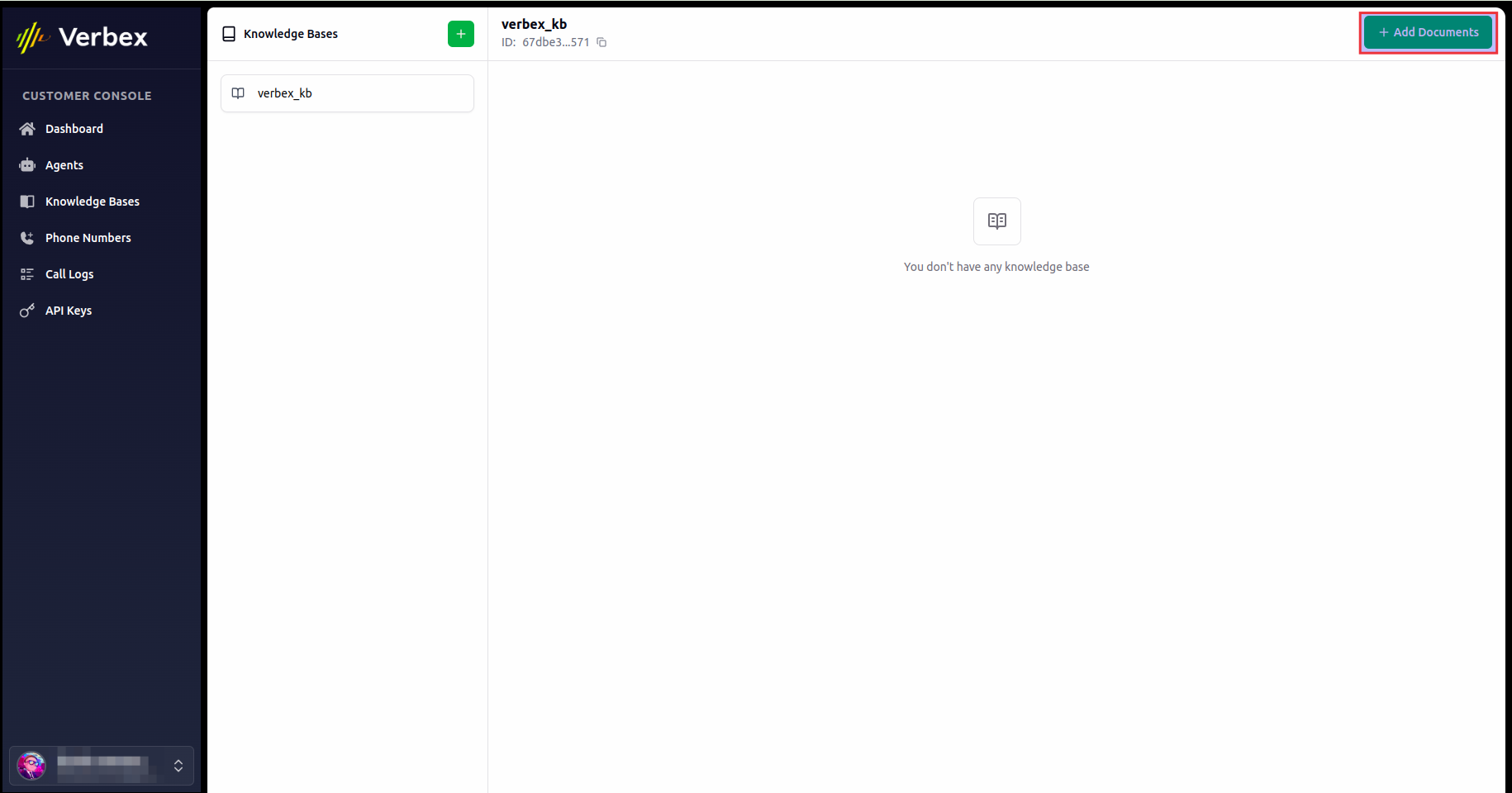 * Select **Upload Files** from the dropdown menu
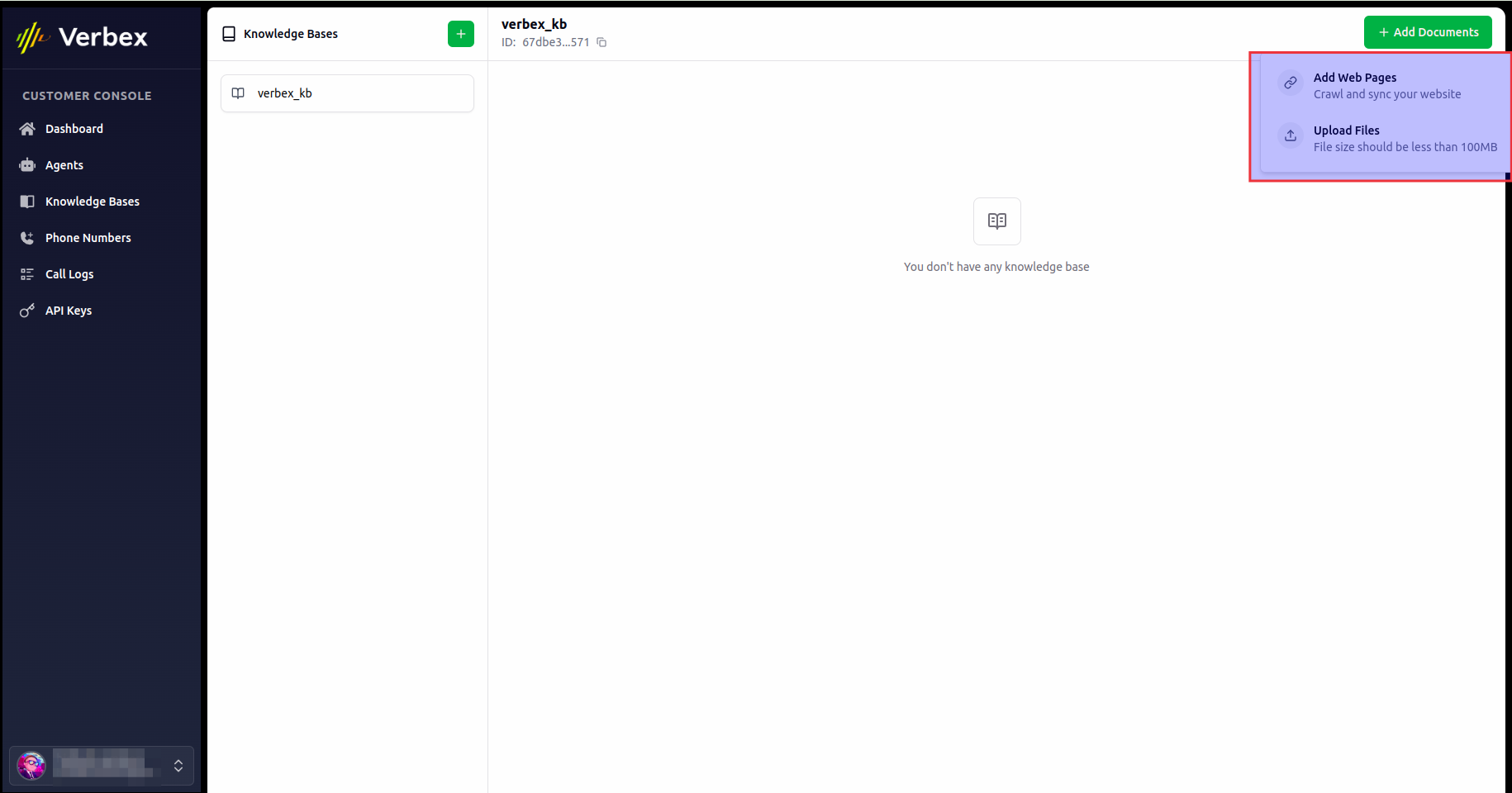 * Select the files you want to add to the knowledge base and click on **Upload**
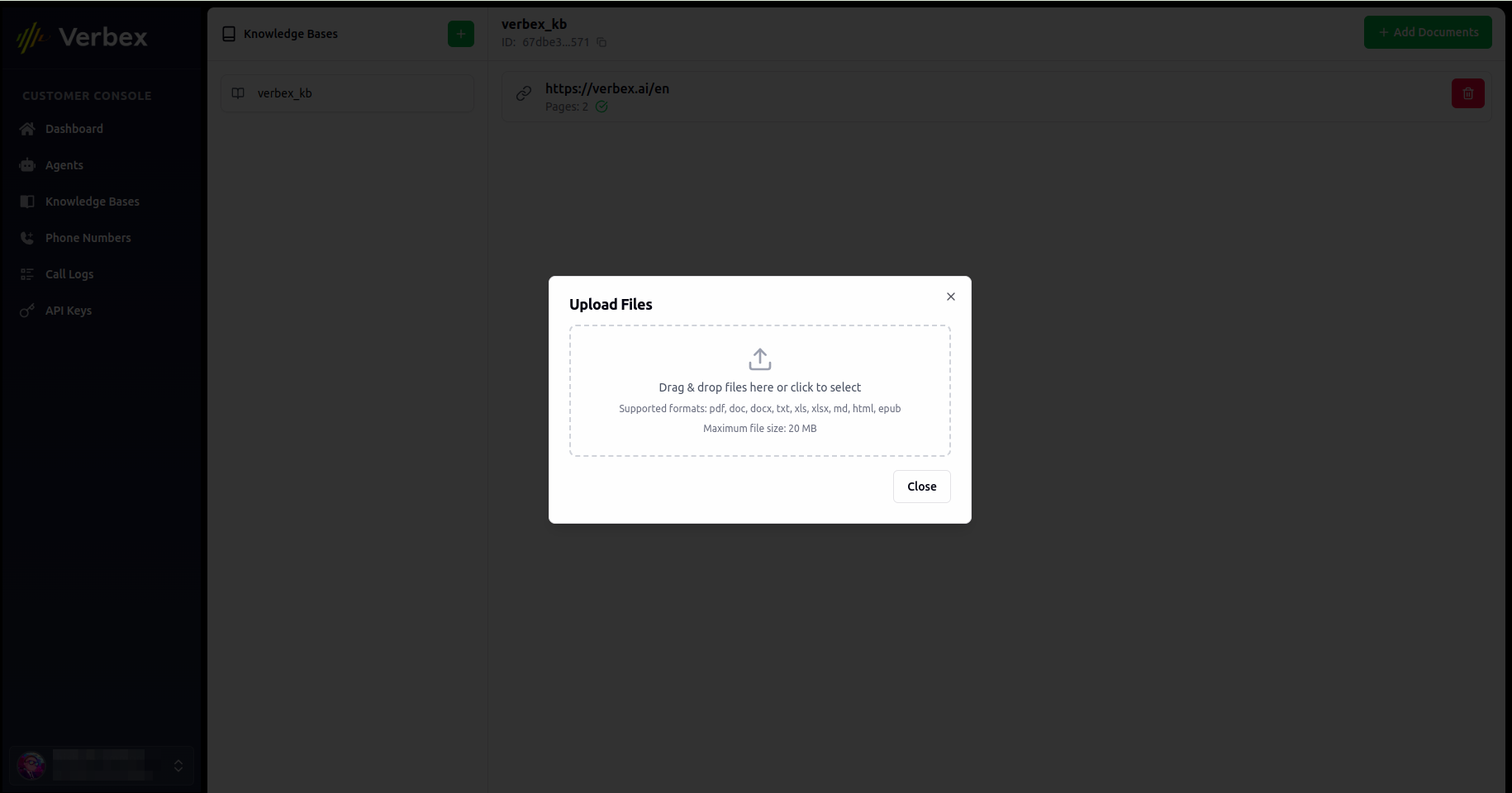 * Click on **Close** to save the changes
After uploading the files, you can see the files in the knowledge base directory and it's processing status.
The total size of all uploaded files should be less than or equal to 100 MB. Larger file sizes will increase
knowledge base searching time.
## Add Websites to Knowledge Base
* Navigate to your desired knowledge base directory and click on **Add Website** from the upper right corner
* Paste the website URL in the input field and click on search icon button.
* Click on **Close** to save the changes
After uploading the files, you can see the files in the knowledge base directory and it's processing status.
The total size of all uploaded files should be less than or equal to 100 MB. Larger file sizes will increase
knowledge base searching time.
## Add Websites to Knowledge Base
* Navigate to your desired knowledge base directory and click on **Add Website** from the upper right corner
* Paste the website URL in the input field and click on search icon button.
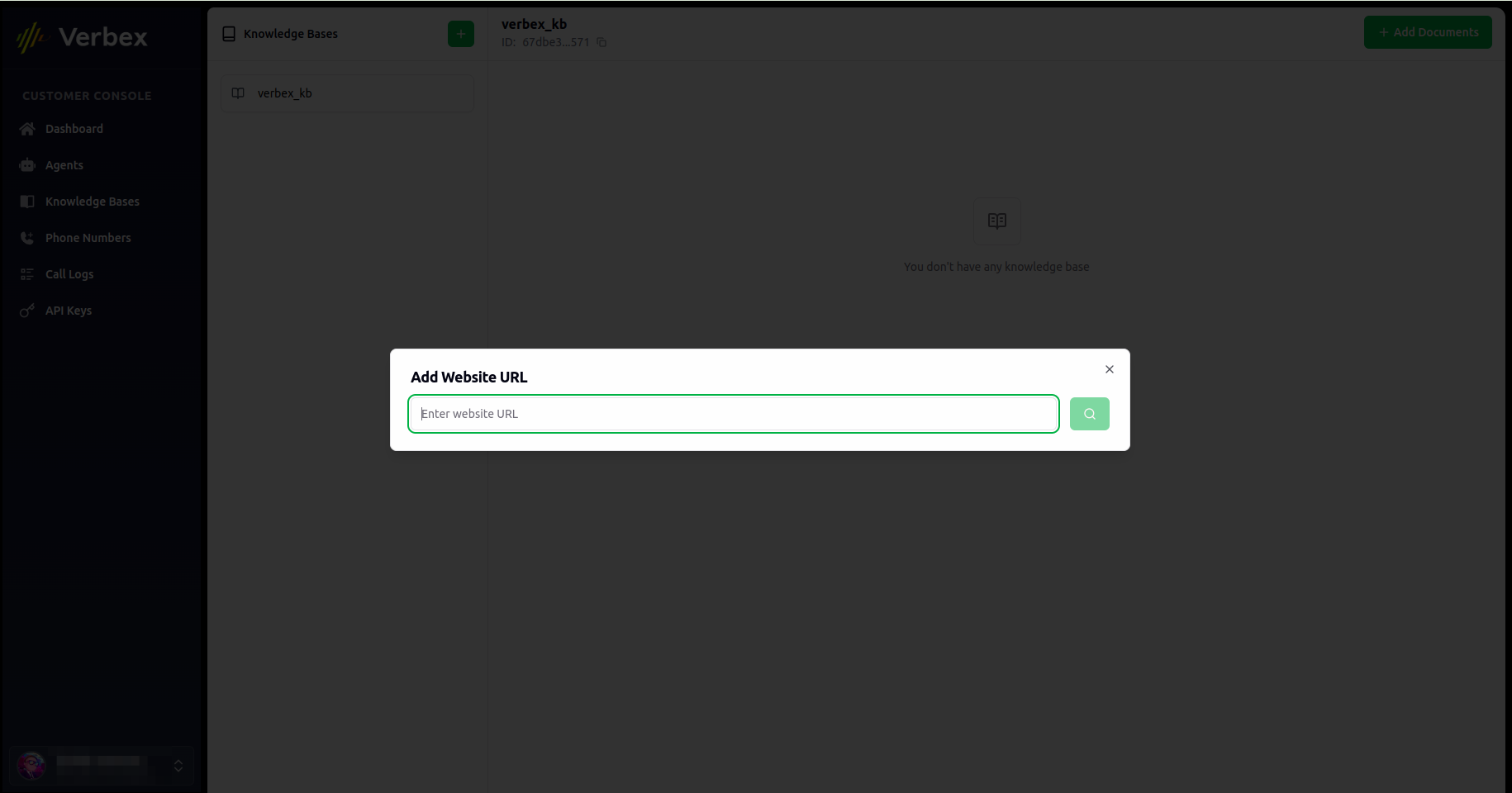 * It will show the website site map. You can select the pages you want to add to the knowledge base and click on select icon button.
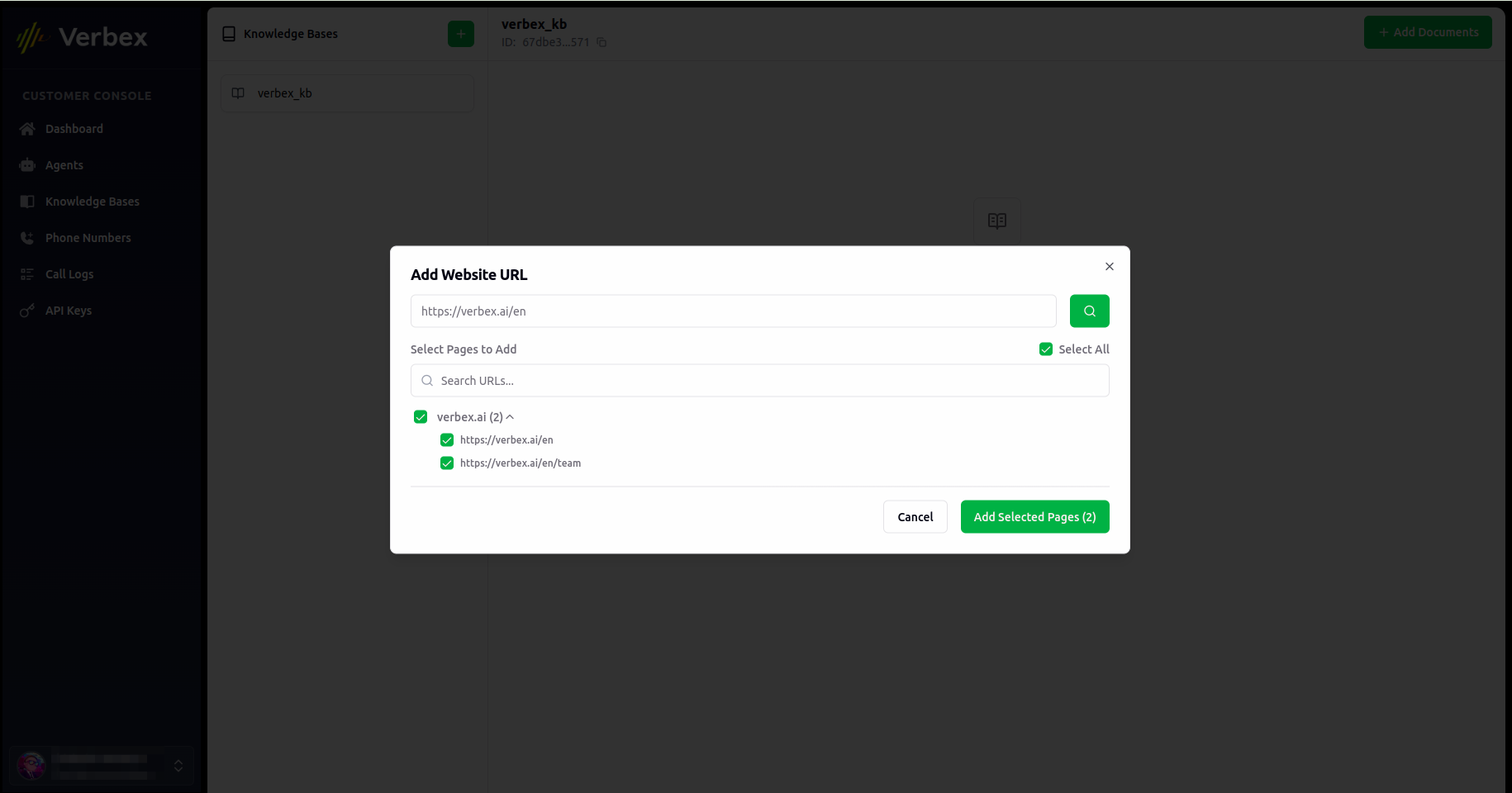 * After clicking **Add selected pages** button, you can see the website in the knowledge base directory and it's processing status.
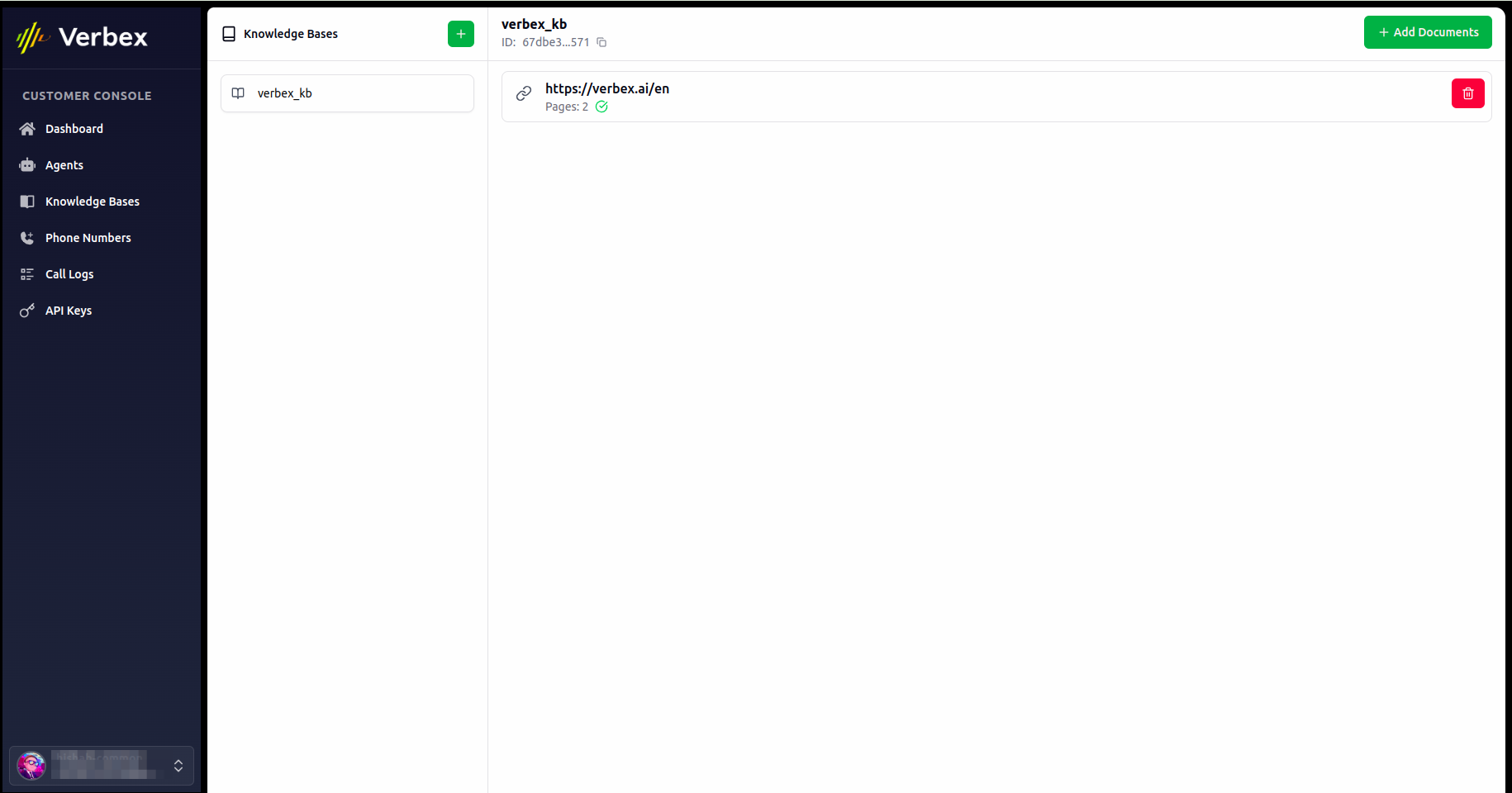 After adding the website, you can see the website in the knowledge base directory and it's processing status.
You can select up to 300 pages from the site map. Keeping your selection under this limit ensures optimal performance.
A knowledge base folder can contain multiple documents and websites. The limits (100 MB for files and 300 pages for websites)
apply to the entire knowledge base, not individual uploads. Plan your content accordingly to stay within these limits for
optimal performance.
## Best Practices for Structuring Files
Create a logical directory structure for your knowledge base to make information easy to find and manage.
Ensure documents have well-defined headings and use bullet points for better readability when uploading files.
When adding websites, carefully choose only the most relevant pages to avoid information overload.
Check the processing status of your uploaded files and websites to ensure they're properly indexed.
Periodically review and update your knowledge base content to maintain accuracy and relevance.
After adding the website, you can see the website in the knowledge base directory and it's processing status.
You can select up to 300 pages from the site map. Keeping your selection under this limit ensures optimal performance.
A knowledge base folder can contain multiple documents and websites. The limits (100 MB for files and 300 pages for websites)
apply to the entire knowledge base, not individual uploads. Plan your content accordingly to stay within these limits for
optimal performance.
## Best Practices for Structuring Files
Create a logical directory structure for your knowledge base to make information easy to find and manage.
Ensure documents have well-defined headings and use bullet points for better readability when uploading files.
When adding websites, carefully choose only the most relevant pages to avoid information overload.
Check the processing status of your uploaded files and websites to ensure they're properly indexed.
Periodically review and update your knowledge base content to maintain accuracy and relevance.