> ## Documentation Index
> Fetch the complete documentation index at: https://docs.verbex.ai/llms.txt
> Use this file to discover all available pages before exploring further.
# Workspace
A Workspace is an isolated project environment in Verbex that enables team collaboration and resource management. Each workspace maintains its own set of agents, phone numbers, users, and allocated minutes, providing a secure and organized way to manage different projects or teams within your organization.
Every workspace contains:
* **Agents**: Voice AI agents specific to the workspace
* **Phone Numbers**: Dedicated numbers mapped to workspace agents
* **Users**: Team members with defined roles and permissions
* **Minutes**: Allocated calling minutes for the workspace
* **Knowledge Bases**: Connected (not created) knowledge resources
## **Default Workspace**
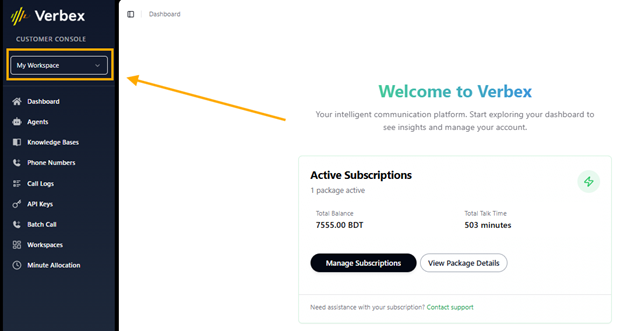
Every account starts with **My Workspace**, which serves as:
* The owner's personal/default workspace
* The only location where Knowledge Bases can be created
* The central hub for managing other workspaces
 ## **Workspace Isolation**
Resources are strictly isolated between workspaces:
* Agent and phone number lists change when switching workspaces
* Minutes are allocated per workspace
* Users have workspace-specific access
* Knowledge Bases are centrally managed but can be connected per workspace
## **User Roles**
### **Owner**
The workspace owner (administrator) can:
* Create new workspaces
* Allocate minutes to workspaces
* Create Knowledge Bases (only in My Workspace)
* Invite members to workspaces
* Access all workspace features
## **Workspace Isolation**
Resources are strictly isolated between workspaces:
* Agent and phone number lists change when switching workspaces
* Minutes are allocated per workspace
* Users have workspace-specific access
* Knowledge Bases are centrally managed but can be connected per workspace
## **User Roles**
### **Owner**
The workspace owner (administrator) can:
* Create new workspaces
* Allocate minutes to workspaces
* Create Knowledge Bases (only in My Workspace)
* Invite members to workspaces
* Access all workspace features
 ### **Member**
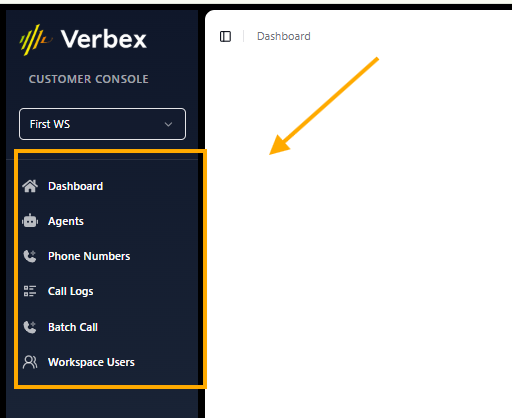
Workspace members (restricted users) can:
* Access assigned workspaces
* Create and manage agents within the workspace
* Connect existing Knowledge Bases to agents
* Use allocated workspace minutes
* Cannot create new Knowledge Bases or workspaces
## **Creating a Workspace**
**Prerequisites**: You must be a workspace owner to create new workspaces.
### **Steps**
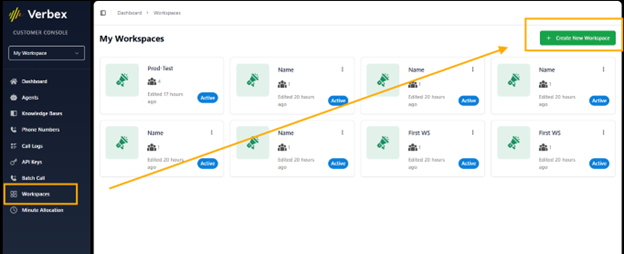
1. Navigate to **My Workspace** → **Workspaces**
2. Click **Create New Workspace**
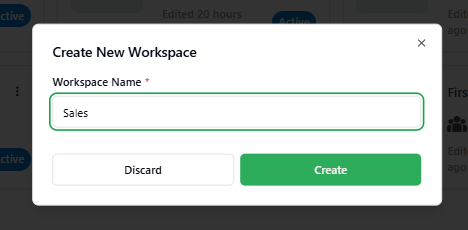
3. Enter a workspace name
4. Click **Create**
### **Member**
Workspace members (restricted users) can:
* Access assigned workspaces
* Create and manage agents within the workspace
* Connect existing Knowledge Bases to agents
* Use allocated workspace minutes
* Cannot create new Knowledge Bases or workspaces
## **Creating a Workspace**
**Prerequisites**: You must be a workspace owner to create new workspaces.
### **Steps**
1. Navigate to **My Workspace** → **Workspaces**
2. Click **Create New Workspace**
3. Enter a workspace name
4. Click **Create**
 ### **Result**
* A new workspace card appears in your workspace list
* The workspace becomes available in the top navigation bar switcher
* The workspace is ready for configuration and team invitations
### **Result**
* A new workspace card appears in your workspace list
* The workspace becomes available in the top navigation bar switcher
* The workspace is ready for configuration and team invitations
 ## **Managing Minutes**
### **Allocating Minutes to a Workspace**
**Note**: Only workspace owners can allocate minutes.
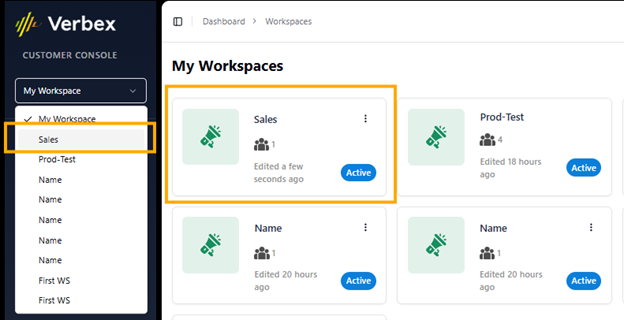
1. Switch to the target workspace using the top bar selector
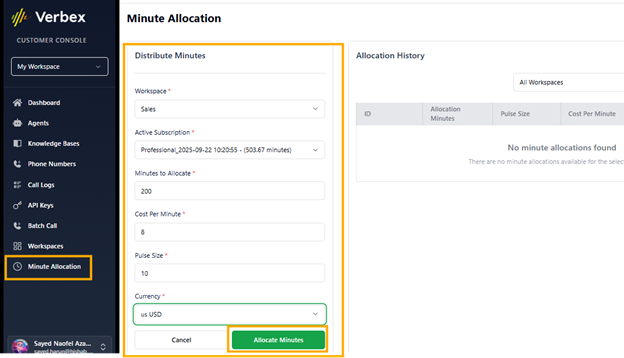
2. Navigate to **Minute Allocation** → **Distribute Minutes**
3. Configure the allocation:
* Select the subscription source
* Set the number of **Minutes**
* Define **Cost per Minute**
* Configure **Pulse** settings
* Select **Currency**
4. Click **Allocate**
## **Managing Minutes**
### **Allocating Minutes to a Workspace**
**Note**: Only workspace owners can allocate minutes.
1. Switch to the target workspace using the top bar selector
2. Navigate to **Minute Allocation** → **Distribute Minutes**
3. Configure the allocation:
* Select the subscription source
* Set the number of **Minutes**
* Define **Cost per Minute**
* Configure **Pulse** settings
* Select **Currency**
4. Click **Allocate**
 ### **Tracking Usage**
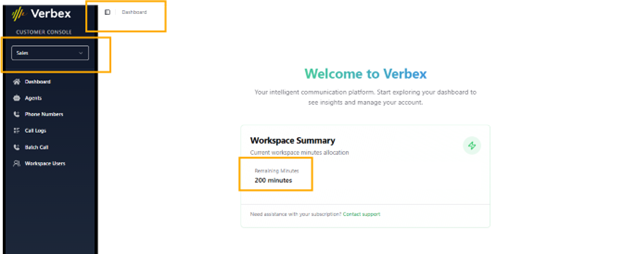
* **Remaining Minutes**: Displayed in the workspace dashboard
### **Tracking Usage**
* **Remaining Minutes**: Displayed in the workspace dashboard
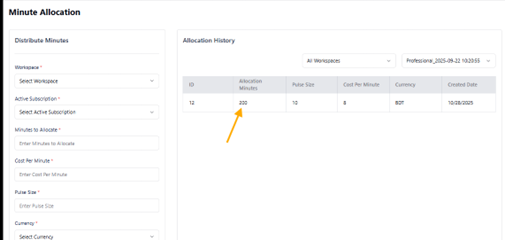
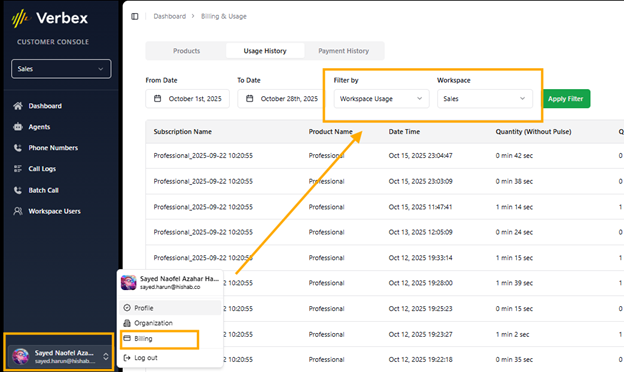
 * **Allocation History**: Complete transaction log of minute distributions
 * **Usage Reports**: Track consumption per workspace
 ## **Team Management**
### **Inviting Members**
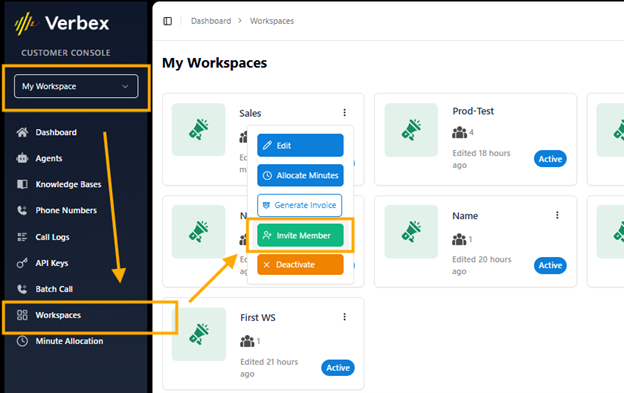
1. Navigate to the target workspace
2. Go to **Workspace Users** → **Invite Member**
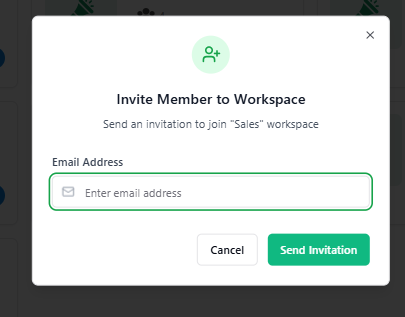
3. Enter the member's email address
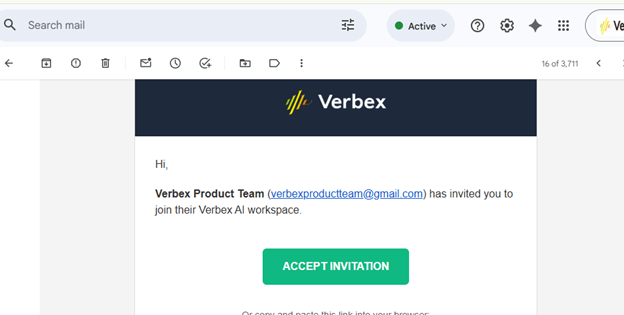
4. Click **Send Invitation**
## **Team Management**
### **Inviting Members**
1. Navigate to the target workspace
2. Go to **Workspace Users** → **Invite Member**
3. Enter the member's email address
4. Click **Send Invitation**
 ### **Member Permissions**
Members automatically receive:
* Access to the specific workspace
* Ability to create and manage agents
* Permission to connect Knowledge Bases
* Usage rights for allocated minutes
### **Member Permissions**
Members automatically receive:
* Access to the specific workspace
* Ability to create and manage agents
* Permission to connect Knowledge Bases
* Usage rights for allocated minutes